

How to Maintain Custom Libraries Across Fabric Workspaces
If you’ve been building shared code for your team in Fabric, you already know the easy part is writing the library. The hard part shows up later: keeping that same library consistent across a dozen workspaces without turning every release into a manual chore.
I’ve covered how to work as a team in an enterprise way and how to build your own library for Fabric in earlier posts. This one picks up where those left off – how do you actually maintain those libraries once they’re spread across your tenant?
There are two strategies I lean on, and I switch between them depending on the setup. Neither is “the right one” – they solve slightly different problems.
Two Ways to Manage Libraries Across Workspaces
Before we get into the wiring, here’s the short version of both approaches:
- One shared environment – you create an environment in a central workspace and point notebooks from other workspaces at it. Update it once, everyone gets the change.
- One shared library, many environments – you keep the
.whlin a single place and use a script to push it out to environments living in each workspace. More moving parts, but far more flexible on the compute side.
Let’s take each one in turn.
Architecture 1: A Single Shared Environment
This is the simpler of the two, and honestly it’s where I’d start most teams.
You spin up a workspace that holds shareable items, and one of those items is a shareable environment (or a few of them, if you have different workload profiles). Because everything points back to one place, maintenance is painless – any update to the environment happens in a single spot, and every notebook connected to it immediately picks up the new Spark cluster, library, or resource.
The trade-off is configurability. If you want a cluster defined independently while reusing the same shared library, this isn’t the way to go – that’s exactly the gap the second architecture fills. But if you’re after simplicity and a single org-wide standard, this gets you there fast.
Architecture with a single shared environment
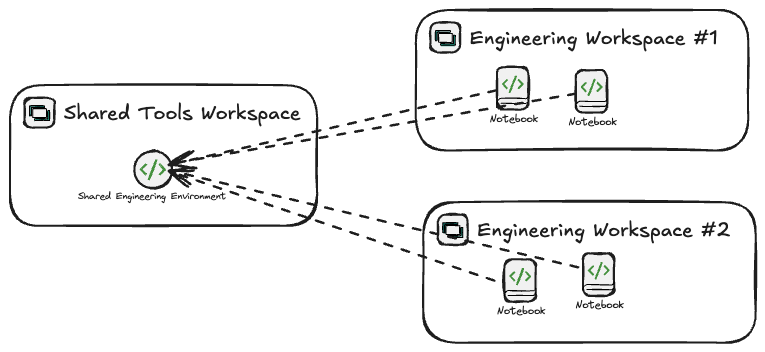
You can see it in the diagram above: multiple notebooks all pointing at the same shared workspace, which holds the shared library the developers use. Wiring a notebook to it takes two clicks:
- Open the notebook.
- Expand the environment list and pick the shared environment. That’s it – your custom libraries from that environment are now available.
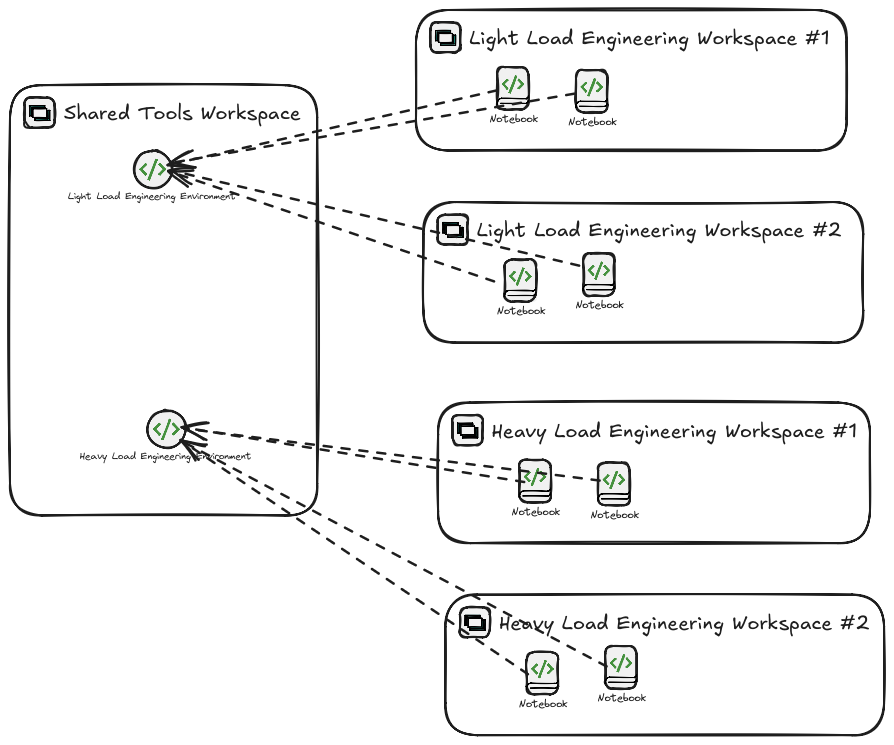
There’s a natural extension here. Instead of one shared environment, create a few – one per workload type. Small jobs get a lightweight Spark config, heavy loads get something beefier. The setup is identical; the only difference is that your shared workspace now holds more than one environment. Pick whichever one matches the job.
Architecture 2: One Library, Pushed to Every Workspace
The second approach is the one I reach for on larger tenants. You still want reusable code sitting in one place, and you still want every workload running the latest version – but now you also want full control over each environment’s Spark engine and resources. A single shared environment can’t give you both.
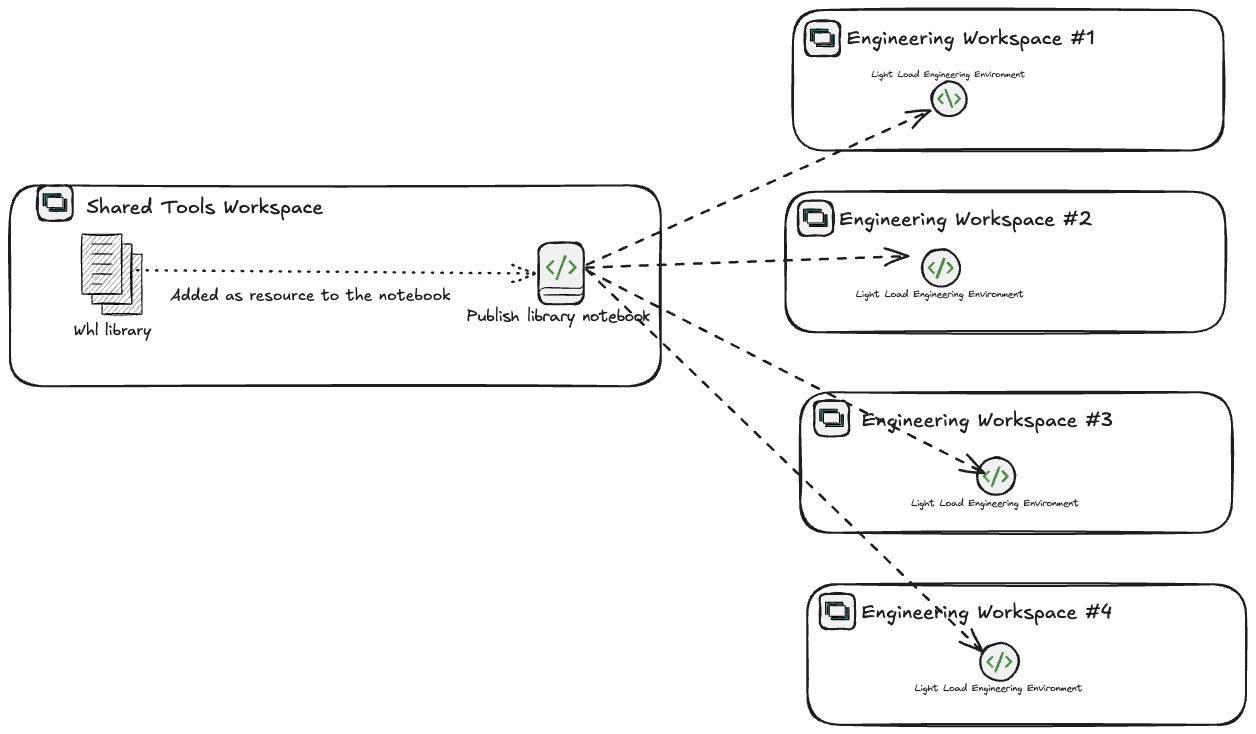
Here’s the idea. On a shared workspace you store the .whl library file (add versioning here if you like), plus a script that publishes it out to environments in other workspaces. You decide which environments are in scope. In my sample script I push it across the whole tenant – personal workspaces excluded – wherever I find an environment with a DE suffix.
Let me walk through the setup.
First, create the target environments in your workspaces using a consistent naming convention. I use a DE suffix. You can use your own rule, but heads up – the script matches on _DE, so if you change the convention you’ll need to adjust it to match.
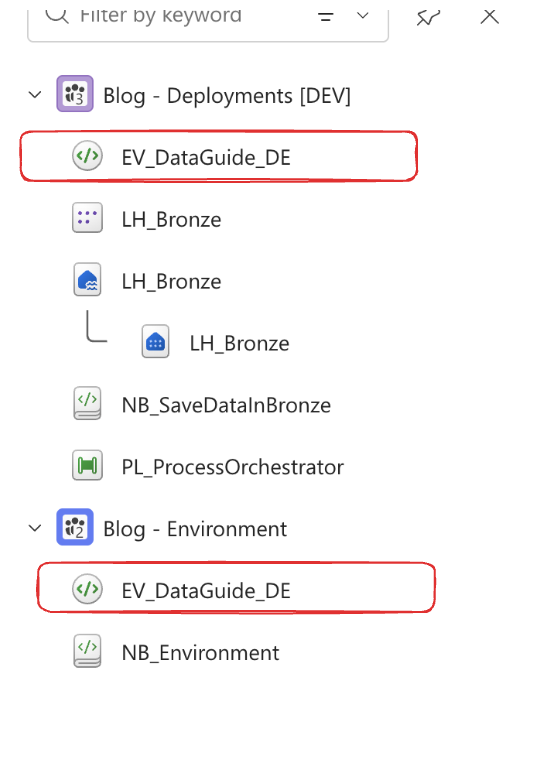
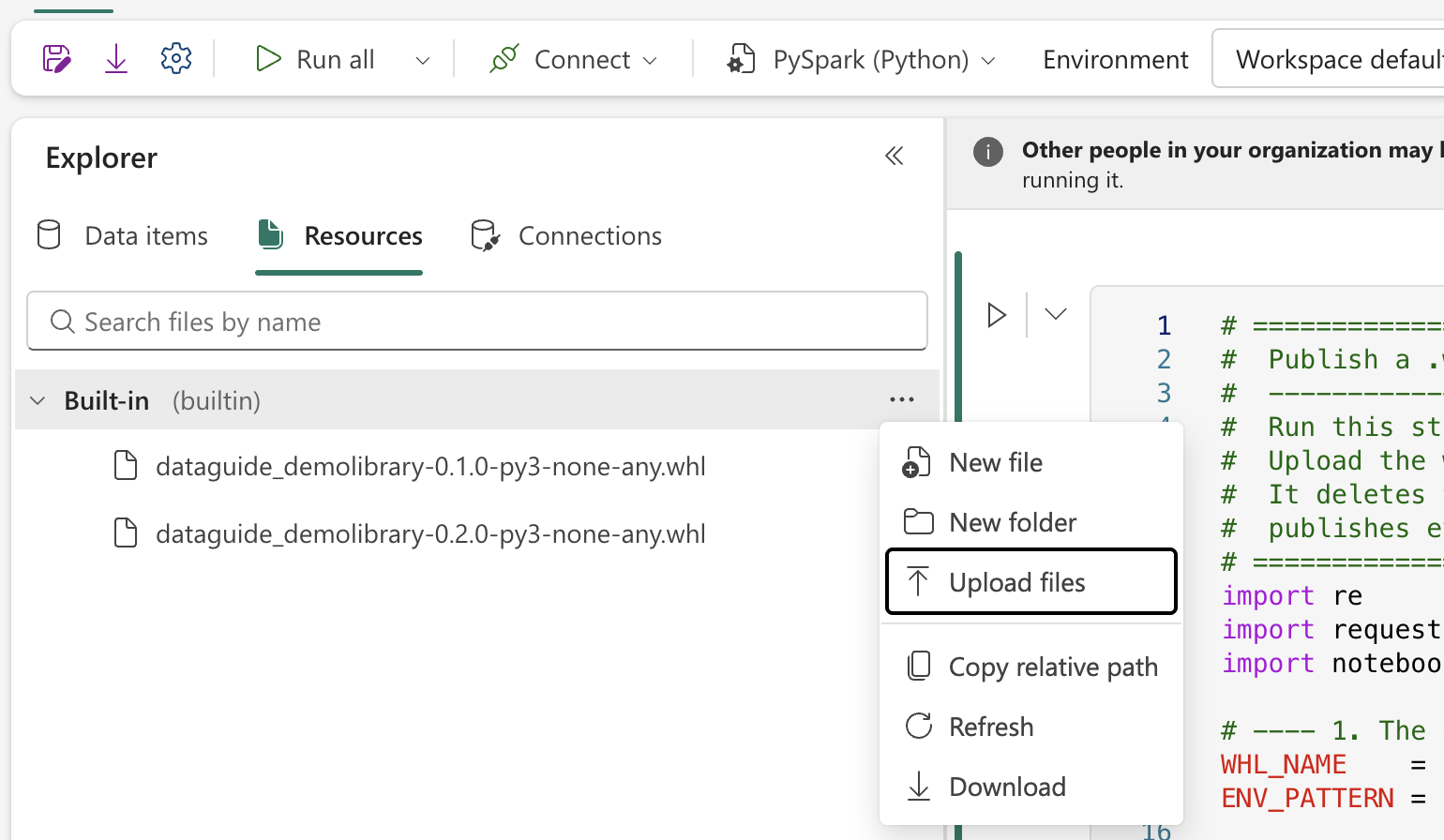
Next, create a notebook in your “shared tool” workspace. It can technically live anywhere, but I keep all reusable items in one workspace so the team always knows where to look. Once the notebook exists, attach your library to it as a built-in resource:
Open the notebook → go to the Resources tab in the explorer → click the three dots next to Built-in → click Upload files → select your library.
With the prerequisites in place, here’s the script (This scripts exists as well in my GH Repo – Github):
# ---- 0. Import libraries ----------------------------------------------
import re
import requests
import notebookutils

# ---- 1. Parameters ----------------------------------------------------
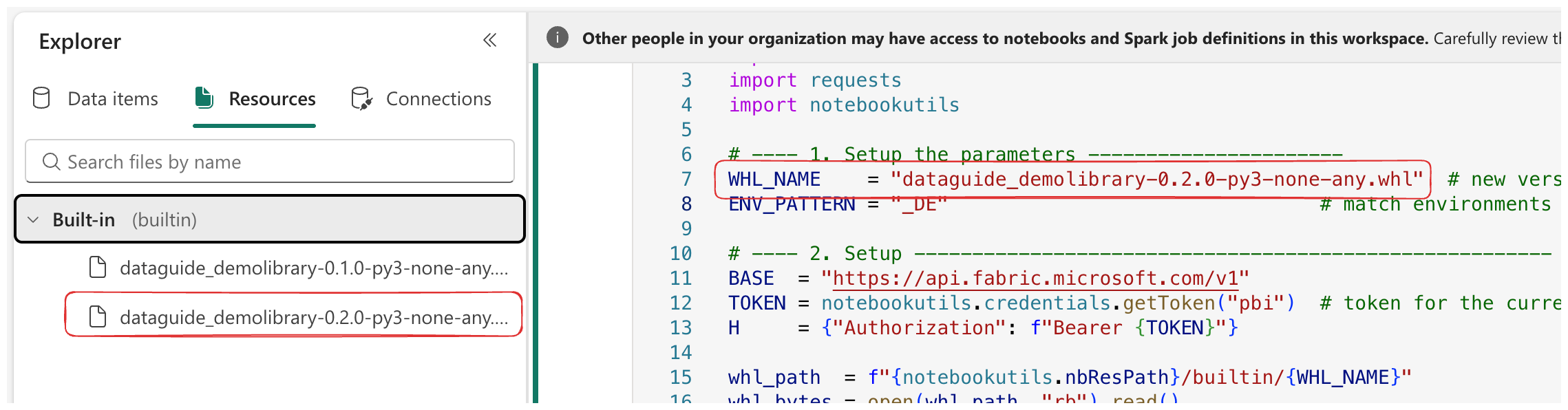
WHL_NAME = "dataguide_demolibrary-0.2.0-py3-none-any.whl"  # new version, sitting in notebook Resources
ENV_PATTERN = "_DE"  # match environments named *_DE (suffix match)

# ---- 2. Setup ---------------------------------------------------------
BASE = "https://api.fabric.microsoft.com/v1"
TOKEN = notebookutils.credentials.getToken("pbi")  # token for the current user, no service principal needed
H = {"Authorization": f"Bearer {TOKEN}"}

whl_path = f"{notebookutils.nbResPath}/builtin/{WHL_NAME}"
whl_bytes = open(whl_path, "rb").read()
package = re.split(r"[-_]\d", WHL_NAME)[0]  # "my_library" -> used to find & remove old versions
print(f"Wheel: {WHL_NAME} ({len(whl_bytes)/1024:.0f} KB) package='{package}'")

# ---- 3. Helpers -------------------------------------------------------
def get_all(url):
    """GET a Fabric list endpoint, following pagination."""
    items = []
    while url:
        r = requests.get(url, headers=H); r.raise_for_status()
        body = r.json()
        items += body.get("value", [])
        url = body.get("continuationUri")
    return items

def deploy(ws_id, env_id):
    libs = f"{BASE}/workspaces/{ws_id}/environments/{env_id}/staging/libraries"
    # 3a. remove any existing version of the same package
    existing = requests.get(f"{libs}?beta=false", headers=H).json().get("libraries", [])
    for lib in existing:
        name = lib.get("name", "")
        if (lib.get("libraryType") == "Custom" and name.endswith(".whl")
                and re.split(r"[-_]\d", name)[0] == package):
            requests.delete(f"{libs}/{name}", headers=H).raise_for_status()
    # 3b. upload the new wheel
    up = requests.post(f"{libs}/{WHL_NAME}",
                       headers={**H, "Content-Type": "application/octet-stream"},
                       data=whl_bytes)
    up.raise_for_status()
    # 3c. publish so attached notebooks pick up the change
    requests.post(f"{BASE}/workspaces/{ws_id}/environments/{env_id}/staging/publish",
                  headers=H).raise_for_status()

# ---- 4. Scan every workspace, deploy to each *_DE environment ---------
updated = []
for ws in get_all(f"{BASE}/workspaces"):
    try:
        envs = get_all(f"{BASE}/workspaces/{ws['id']}/environments")
    except Exception:
        continue  # skip workspaces that don't expose environments
    for env in envs:
        if env["displayName"].endswith(ENV_PATTERN):
            try:
                deploy(ws["id"], env["id"])
                updated.append(ws["displayName"])
            except Exception as e:
                print(f" ! Failed in {ws['displayName']} / {env['displayName']}: {e}")

# ---- 5. Report --------------------------------------------------------
print(f"\nUpdated {WHL_NAME} in {len(updated)} workspace(s):")
for name in sorted(updated):
    print(f" - {name}")
print("\nPublish runs in the background (typically a few minutes per environment).")
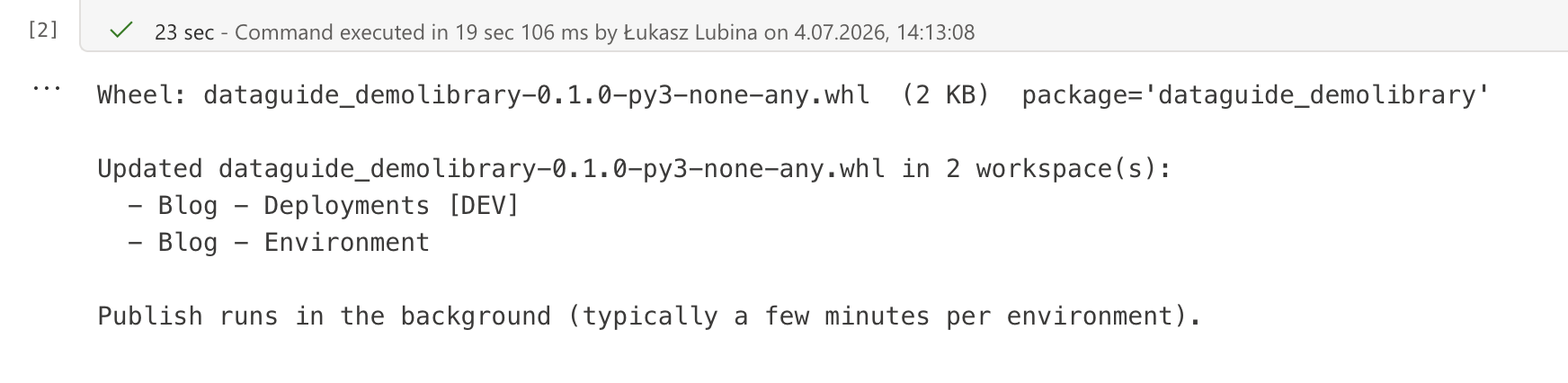
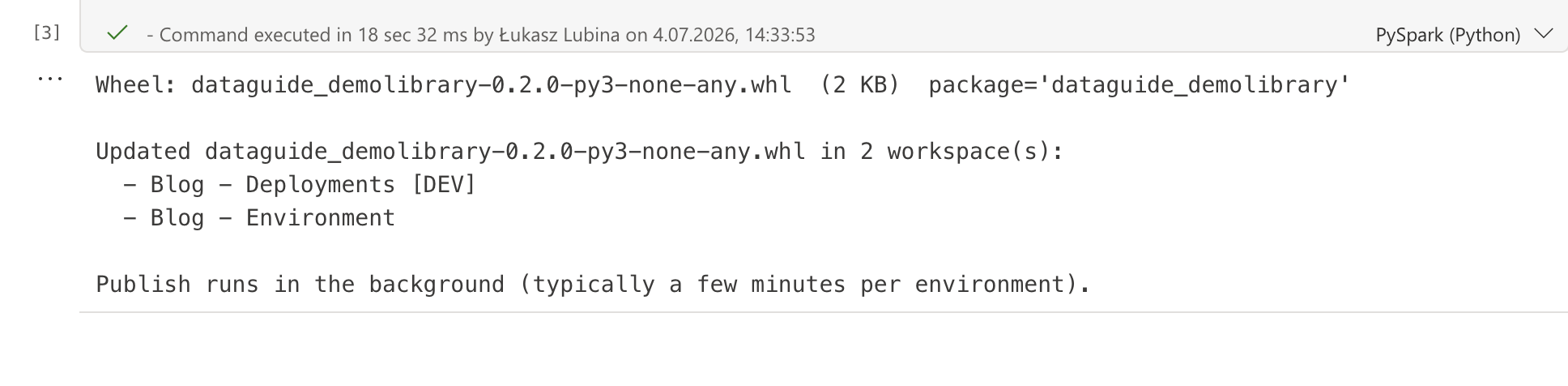
Run it, and you get a printed list of the workspaces the library landed in. It finishes fast – all it does is upload and kick off the publish. The publish itself runs in the background, so the script never sits there waiting on it.
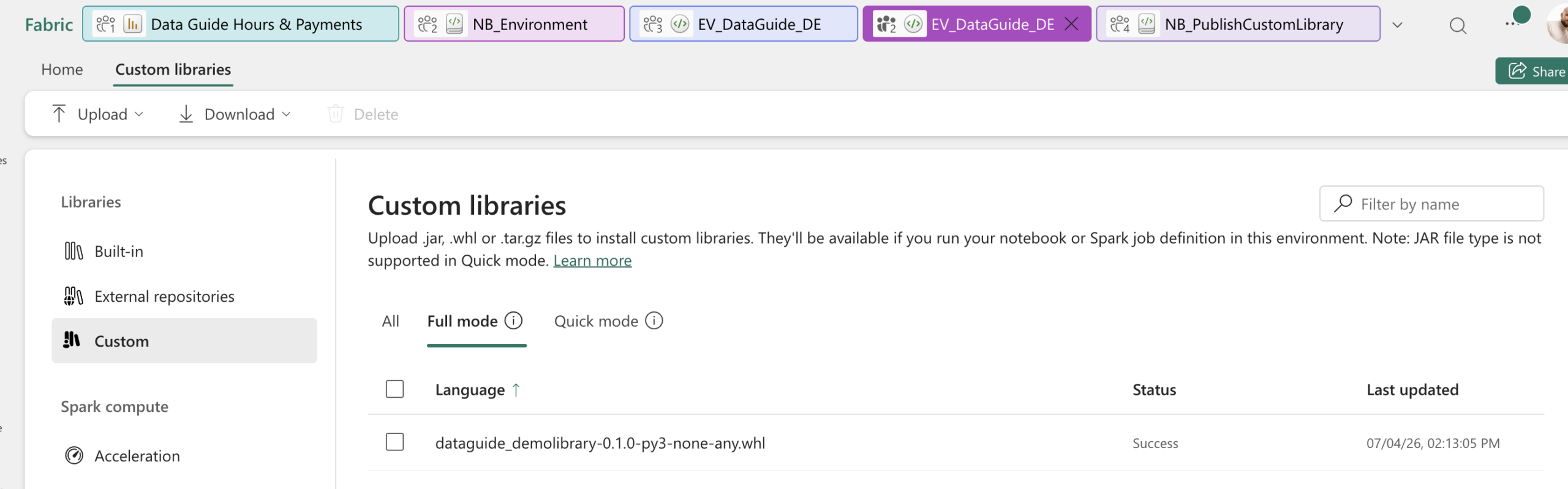
Updating to a New Version
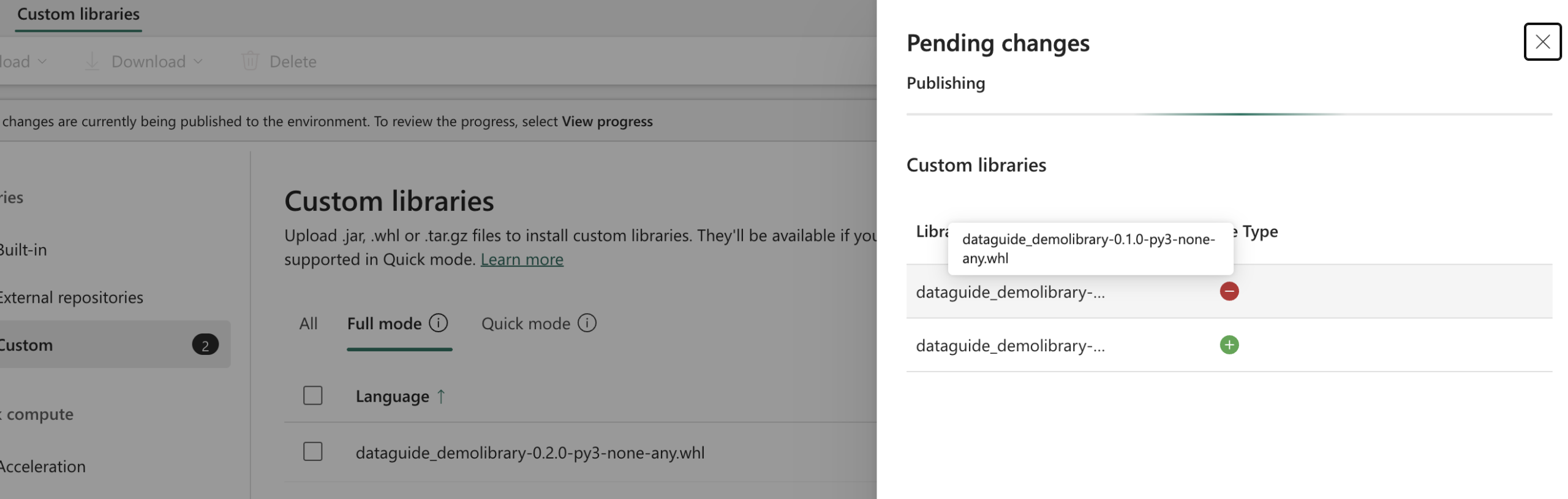
The same script handles version bumps – no second script to maintain. After you update the library, just run it again. It looks for the package by name (the part before the version, which is why a consistent naming convention matters), finds it in the environments that are in scope, removes the old one, and uploads the new build. Publish happens in the background here too.
Upload the new version and update the variable
Run the script
Check the results
Wrapping Up
That’s the two approaches I use for keeping custom libraries consistent across a Fabric tenant. One shared environment when you want simplicity and a single standard. One shared library pushed to many environments when you need the reusable code centralized but the compute flexible per workspace.
Which one fits your day-to-day? Or are you handling this some other way entirely? Drop it in the comments – always curious how other teams tackle this.
Happy automating!